
When managing multiple pressures, number plate invoices shouldn’t be something you have to chase or search after. Spindle Invoices is a dedicated page where your accounts financial documents can be found when you need them.
Spindle Invoices
Whether you are checking recent purchases or looking to pay an outstanding bill, Spindle helps you stop the inbox archaeology. Spindle Invoices puts all your account documents at your fingertips, saving you time searching for them.
Dashboard – Video
3 simple sections provide an overview of your accounts financial history, and lists all your invoices and monthly statements by date. The Invoices list provides both a quick summary of each invoice and provides downloadable files with full details of the transaction.
Read on for more details on Spindle Invoices and its features.
Invoice History
At the top of the Spindle Invoices page is Invoice History, a filterable graph and summary section (1). In the screenshot shown below “Year To Date” is selected in the dropdown filter. In this mode the graph shows invoices issued with value and month as summary points, hovering over will display a tooltip with that months total.
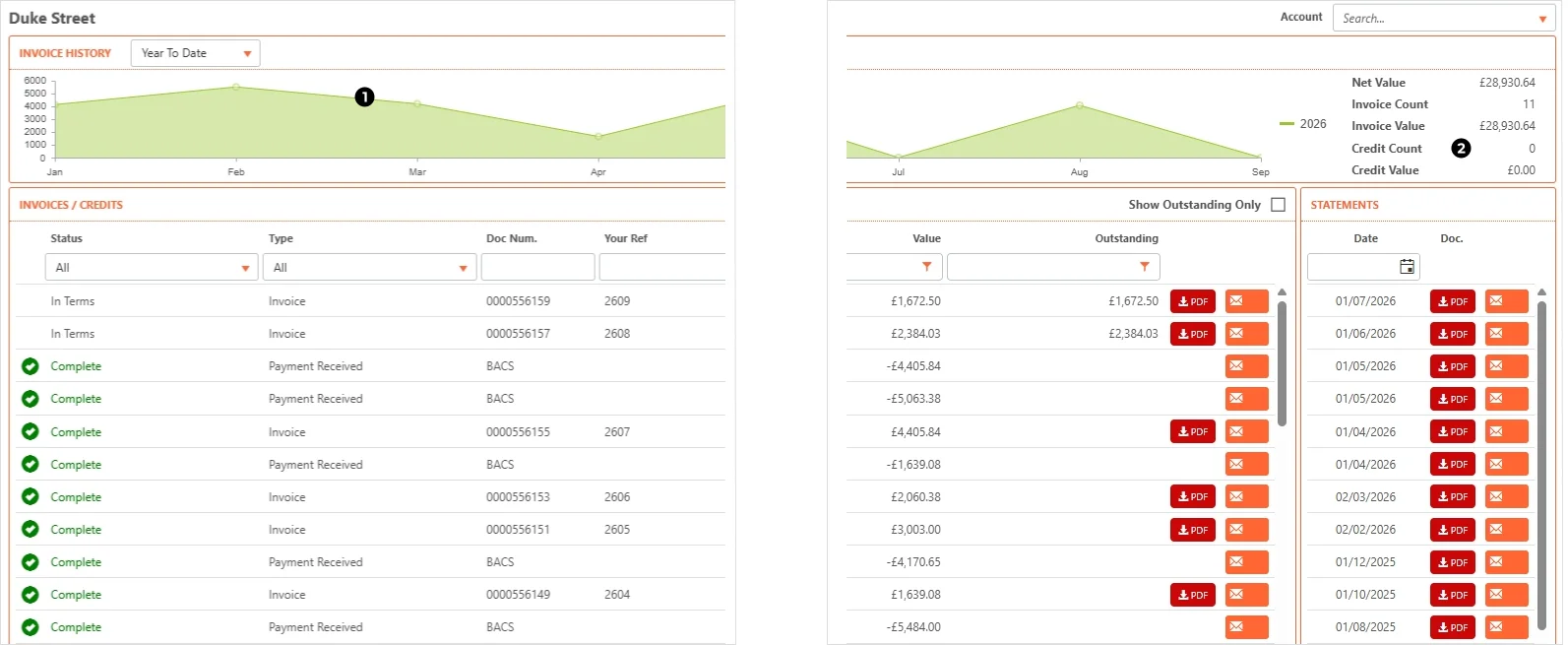
On the right-hand side is a quick summary based on the graph’s selected time period (2). In this case it shows the total number of invoices and their combined value: your spend this calendar year.
Invoices & Credits
The main section of this page is used to list Invoices and Credits linked to an account. By using a tabular format, the list can be filtered with the column fields across the top (3). If you are looking for an invoice, setting the Type dropdown makes finding specific files easier. If your invoice list is empty, untick the Show Outstanding Only checkbox (4) to reveal all your historic documents.

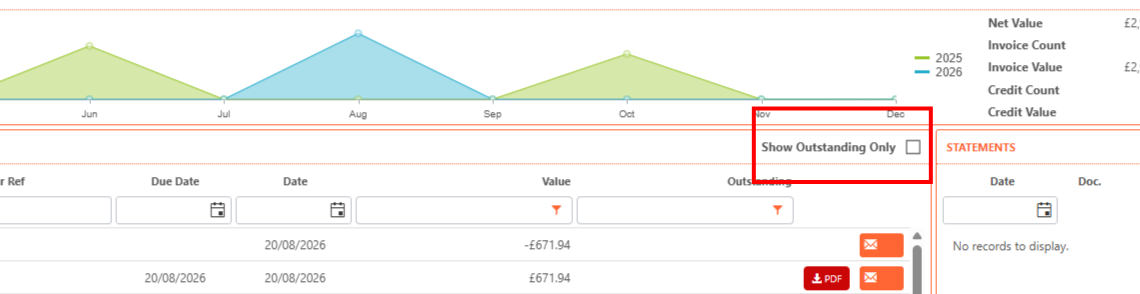
The last column is reserved for Invoice Downloads and notes (5). Invoice details are provided by the PDF files, each item in the order is listed with its quantity and unit price. Order totals and VAT are also shown along with Tennants payment information.
Statements Box
A boxed section on the left is used to provide access to account Statements as PDF downloads (6). A dropdown menu provides quick filtering with a calendar if you want a file issued on a specific date.
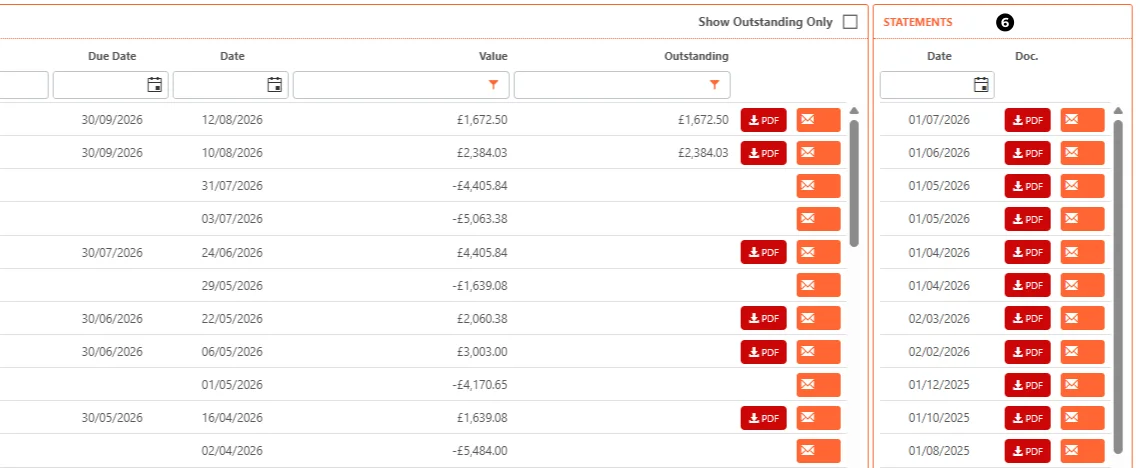
By default, the statements are shown listed in desending order, with the most recent on top. Just like the invoices section, each item comes with a PDF file and a button to send an enquiry or note.
Spindle Features & User Guides
For more details of Spindle’s features or easy to follow user-guides, see the other articles in this Spindle Series. The next article is a guide on Order History, covering how to view previous order values, see order details in full and reorder.