
The Spindle Order History page stops you having to search through old emails to find out what components you need when restocking. Each of your previous orders are listed and summarised for easy review and reordering.
Spindle Order History
When looking to restock your number plate components, Spindle stops you having to start each order from scratch. The Spindle Order History page stores all your previous orders, saving you time checking part-numbers and product names.
Order History – Video
Three sections give a detailed summary of your purchasing history, lists your previous orders for review and reordering. A simple compact section provides a reminder of your accounts outstanding balance and unread documents.
Read on for details of the Spindle Order History page & features.
Order History Chart
At the top of the page is your Order History graph (1), a simple filterable chart and summary section. In the screenshot shown below the “Year To Date” is selected in the dropdown filter. This mode displays orders placed with value and months used as summary points. Hovering over an intersection will display a tooltip with that months total.

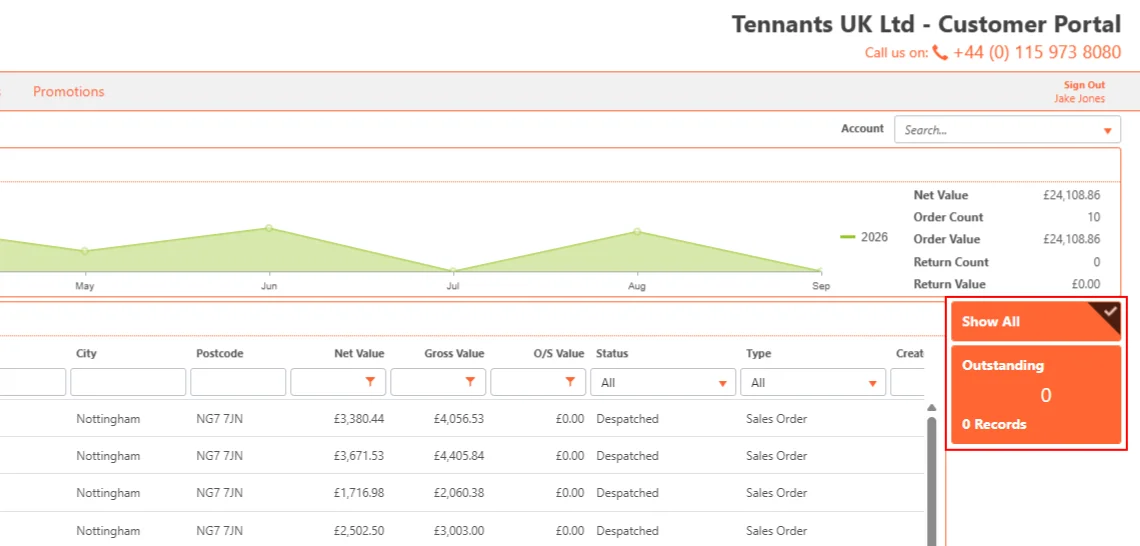
On the right-hand side of the chart is a quick order summary based on the filtered period (2). In this case it shows the total number of orders and their combined value: this years spending so far.
Orders List
Underneath the history chart is the Orders & Returns List (3). Starting with the last order placed, it shows an overview of each order history with its reference numbers, date, value, status and chosen delivery address. By using a table display, the list can be filtered with the column fields across the top (4). If you are looking for a specific Order, entering its Reference Number will remove all the other orders

The tables first column is reserved for an Arrow Button (5), which launches a popup module with full details of each order.
Order Details
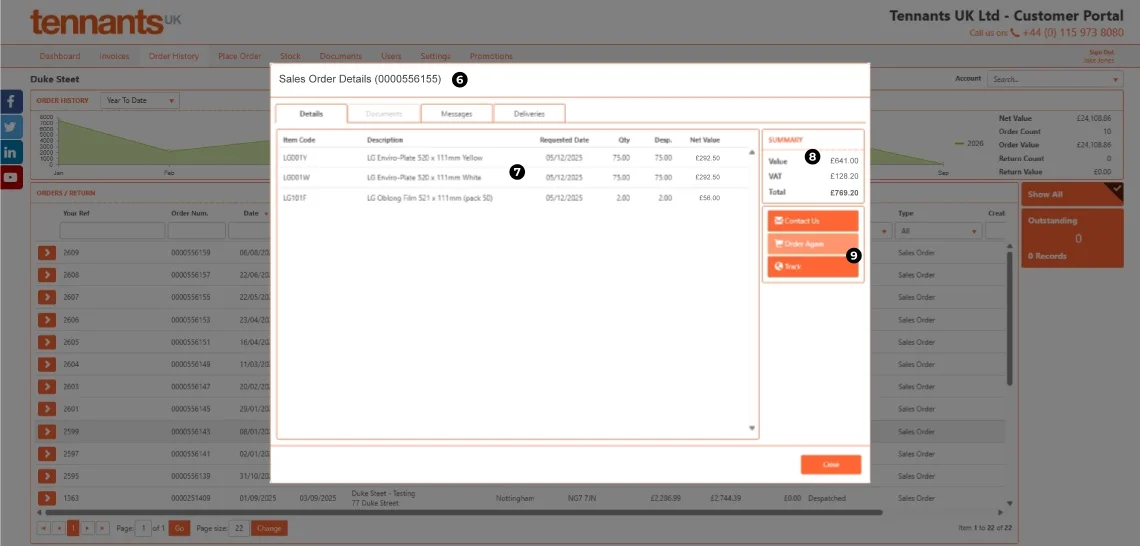
The Order Details popup (6) lists each orders components, part-number, name, quantity and costs (7). Tabs across the top provide access to any linked documents, messages or delivery notes. A box on the left gives a financial summary (8) of the order. Buttons on the side offer quick contact, reorder (9) and tracking links.
Reorders
By storing previous purchases on your order history page, Reorders are made easy. Simply view an order’s details using the popup module. Click the Order Again Button to add everything eligible to a new order. Then browse to the Place Order page to check quantity and delivery options before confirming and placing the order.
Spindle Features & User Guides
For more details of Spindle’s features or easy to follow user-guides, see the other articles in this Spindle Series. The next article is a guide on how to Place Orders, covering each step of the process, from picking components to setting delivery options and confirming the order.